
I’ve been an Amazon customer for far too long. I’ve bought Kindle books for years, owned several of their devices, and I still hate the way the company treats digital content.
You pay for a book, but you can only read it where Amazon allows. There is no decent native Linux app. Moving to another reader turns into an exercise in archaeology. I bought a new Xteink X4 and, naturally, my library couldn’t simply come along. The file was “in my account,” but it wasn’t under my control.
For years, I worked around this through the official route. I’d sign into Amazon’s website, use Download & Transfer via USB, download the .azw files for books I’d bought, and import everything into calibre. With the DeDRM plugin configured for my Kindle’s serial number, I’d convert them to EPUB and be done with it.
On February 26, 2025, Amazon shut that option down. No decent announcement, no replacement that actually handed over the file, and no concern for anyone who wanted a local backup. My newer books have been trapped in their ecosystem ever since. I tried again last year, updated the plugin, copied files from my Kindle Paperwhite, entered the correct serial number, and got nowhere.
To be fair, on January 20, 2026, Amazon began allowing verified buyers to download EPUB or PDF files when the publisher marks the book as DRM-free. Great. That doesn’t help with protected books, and the decision still belongs to the publisher. Older DRM-free titles must also be confirmed one by one by the publisher. This did not magically add a download button to my library.
I decided to try again now. The new DeDRM version can handle the current DRM, but the process has changed quite a bit. It takes work, requires Windows for one step, and relies on a community tool still in pre-release. It worked. I recovered 106 books I’d bought, tested the EPUB conversion, and can now read them on whatever device I choose.
This is the state of play on July 30, 2026 (updated August 19). Amazon could change the encryption or the app tomorrow. Ignore old tutorials telling you to install Kindle for PC 1.17, disable updates, and enter the device serial number in Calibre. That world is gone.
And let’s get the obvious out of the way: I’m talking about books I bought. I’m not talking about downloading Kindle Unlimited titles, library loans, or somebody else’s books. Laws covering DRM circumvention vary by country. Check the law where you live and take responsibility for what you do.
First things first: don’t throw out an old Kindle
Amazon doesn’t make it easy to repurpose an old Kindle either. The hardware remains perfectly good, the battery is usually replaceable, and an e-ink screen lasts forever, yet the software becomes increasingly closed and limited.
If you want to revive one of these devices, I recommend the Dammit Jeff channel. He covers jailbreaks, KOReader, alternative stores, and ways to keep Kindles useful after Amazon loses interest. His video about AdBreak and recent jailbreaks is a good place to start. Read the current Kindle Modding guide before doing anything, because supported firmware and methods change constantly.
Jailbreaking the device and removing DRM from an ebook are separate problems. You do not need to unlock your Kindle to follow the rest of this article. I mention both because they start from the same premise: hardware and media we’ve already paid for should remain useful without asking the manufacturer for eternal permission.
Crash course: AZW, EPUB, and KFX
DRM and file format are separate things. The format defines how text, images, fonts, the table of contents, and metadata are packaged. DRM adds a cryptographic lock on top and decides which account, app, or device can open it.
These are the three names that matter here:
| Format | What it is | In practice |
|---|---|---|
| AZW / AZW3 | An older family of proprietary Kindle formats. AZW3 is also known as Kindle Format 8. | This is what normally came through the old USB download. Tools and alternative readers understand it well after the DRM is removed. |
| EPUB | An open W3C standard. It is a single package containing HTML-based content, CSS, SVG, fonts, and metadata. | It is the most portable format for storage and reading outside Amazon’s ecosystem. This is the destination I want. |
| KFX | Amazon’s modern delivery format, used for features such as Enhanced Typesetting and Page Flip. A purchased book may be split across several containers, auxiliary resources, and a DRM voucher. | This is what the current Kindle app downloads. We need to gather the pieces, remove the DRM, and only then convert it. |
The extension alone can be misleading. Pieces of a KFX book may show up as .azw, .azw.res, .voucher, and other variations. The KFX Input plugin exists specifically to understand that bundle.
EPUB is much less mysterious. The EPUB 3.3 specification defines it as a single-file container for structured Web content. It’s basically a small packaged website. Any halfway decent reader can support it without depending on a secret Amazon key.
Calibre and the two plugins
calibre is the Swiss Army knife of ebooks. It’s open source, runs on Linux, macOS, and Windows, organizes libraries, fetches metadata, edits covers, transfers books, and converts dozens of formats. It has been around since 2006 and was born precisely because the first Sony Reader didn’t work properly on Linux.
On Omarchy or any other Arch system, install the package:
sudo pacman -S calibreFor other distributions, see the official download page. Don’t install some random package from a download site.
One gotcha for environments using mise: if Calibre dies with ModuleNotFoundError: msgpack or BrokenPipeError, a Python shim probably got ahead of /usr/bin. The Arch package needs the system Python. Start it like this:
env PATH="/usr/bin:$PATH" /usr/bin/python3 /usr/bin/calibreThis has nothing to do with DRM or the plugins. It’s just Calibre’s helper calling the wrong Python. I left a permanent launcher with this PATH on my desktop.
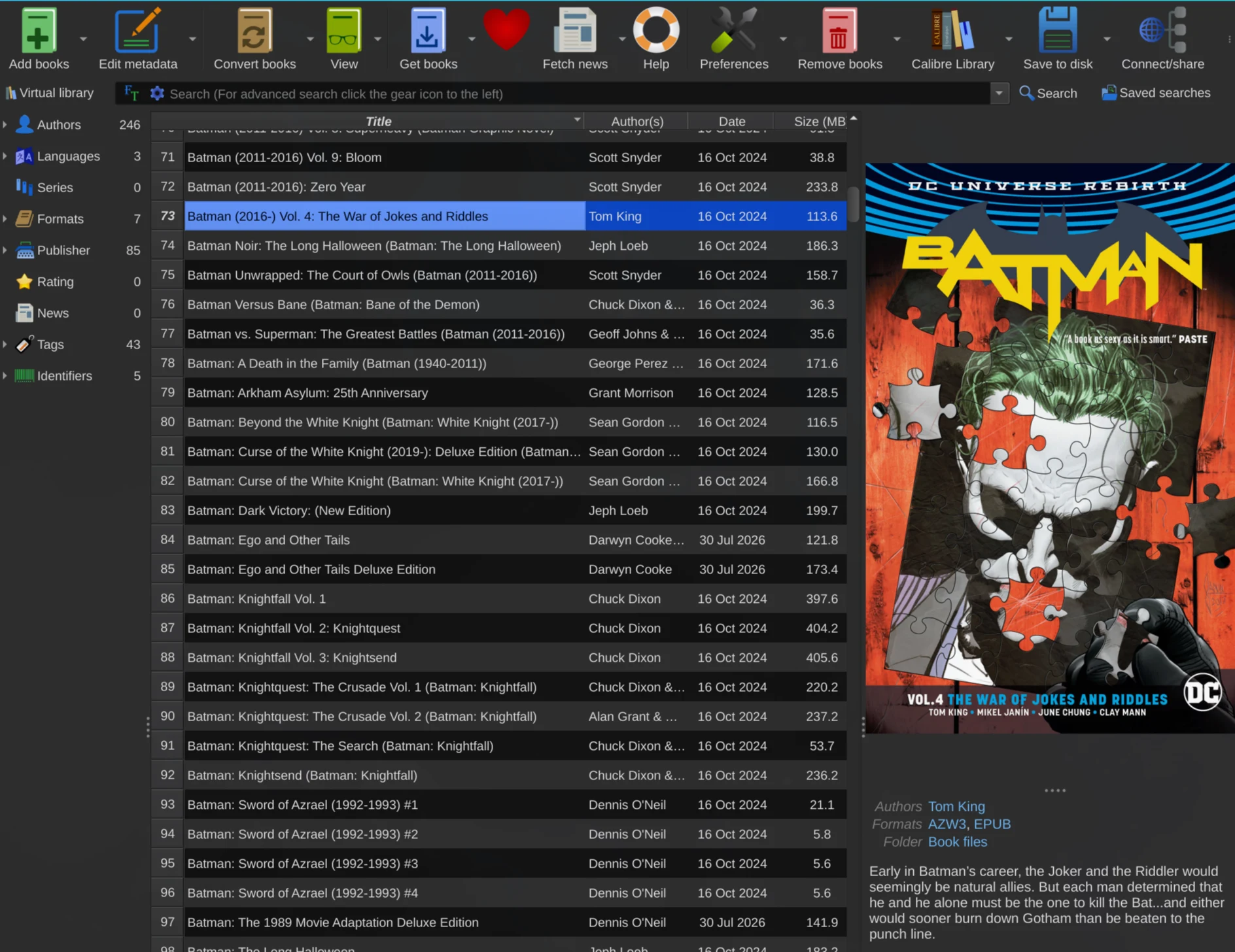
Calibre alone does not remove DRM. We need two plugins:
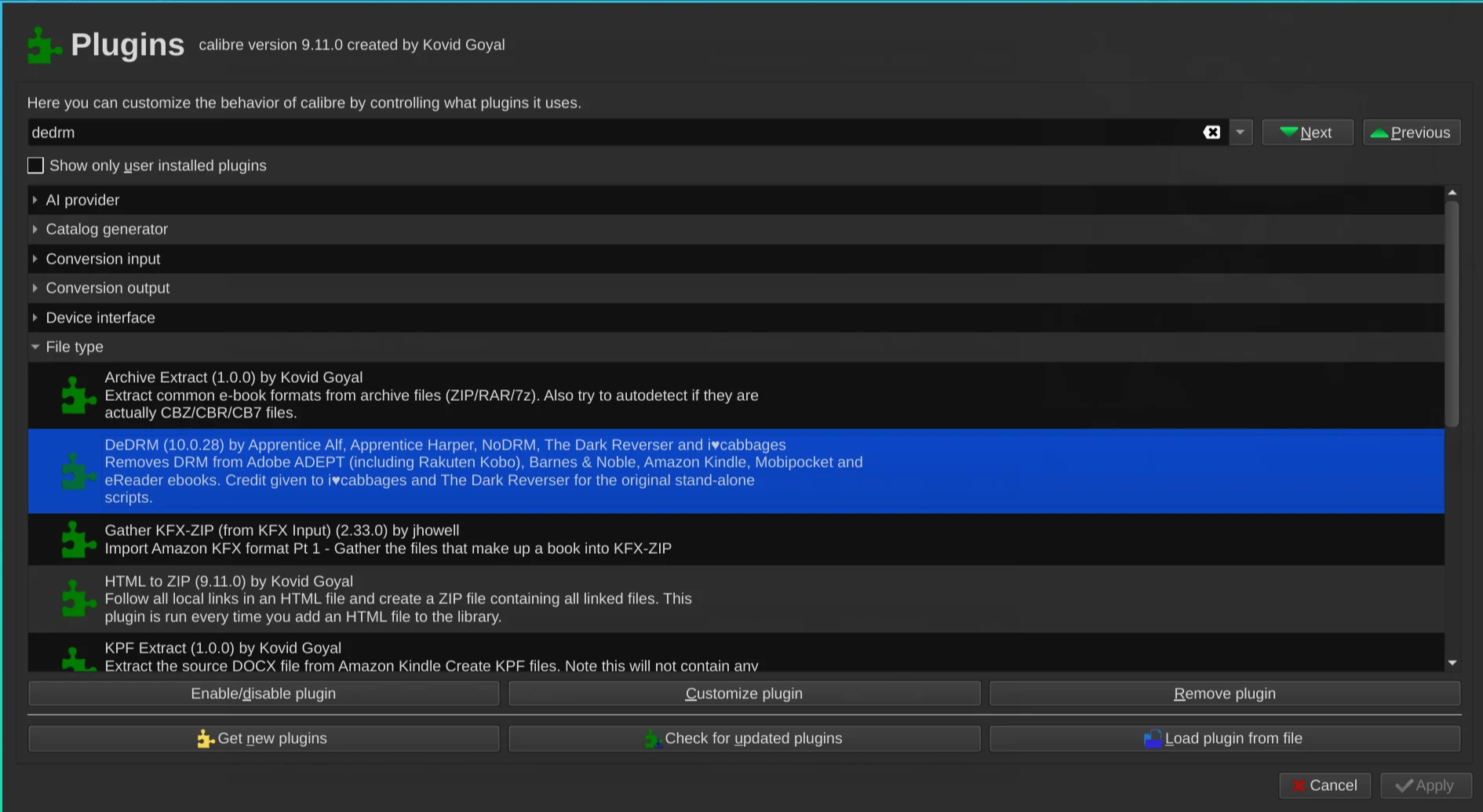
- DeDRM recognizes and removes locks from several ecosystems during import. It only runs when the book enters the library. Clicking Convert afterward removes nothing.
- KFX Input understands Amazon’s modern containers, gathers the pieces of a book, and makes EPUB conversion possible.
At the time of writing, I’m using DeDRM 10.0.28, published on July 14 in the fork maintained by Satsuoni. It is a pre-release. Download the asset named DeDRM_tools.zip, never a standalone executable from some obscure mirror.
Update (August 2026): the Kindle app on the Microsoft Store keeps moving, and each new app version requires a new version of the tool. Since this article was published, the app moved past 1.0.18632: 10.0.29 added support for app 1.22326, and 10.0.30 supports app 1.0.22920. The practical rule is a single one: the executable’s name carries the app version it understands (MSIXKFXArchiverMobi1_22920.exe for Store app 1.0.22920, and so on). Before you start, always check the releases page of Satsuoni’s fork and grab the newest pre-release. Everything else in the process described here stays the same.
I extracted everything into a directory that would later be shared with the Windows VM:
mkdir -p ~/Windows/Kindle-DeDRM/v10.0.28
unzip ~/Downloads/DeDRM_tools.zip -d ~/Windows/Kindle-DeDRM/v10.0.28
The SHA-256 for the DeDRM_tools.zip I used was:
520cce704edf9ae26e43196efe2871daf9b25d6cb489aa56051626801c362947Check it with sha256sum. This doesn’t magically turn a community binary into safe software, but it at least confirms that you’re using the same file I tested.
Inside that directory is DeDRM_plugin.zip. Do not extract this second ZIP. In Calibre, open Preferences → Plugins → Load plugin from file, choose DeDRM_plugin.zip, accept the warning, and restart the program.
Then go back to Preferences → Plugins → Get new plugins, search for KFX Input, and install it. My test used version 2.33.0. Restart again.
Why copying from the Kindle over USB didn’t work
The simplest path would still be plugging in my new Kindle Paperwhite, copying the book, and configuring the device serial number in DeDRM. That was the first thing I tried.
The file came in as KFX-ZIP, the plugin ran, but it remained encrypted. I opened Calibre in debug mode and the log showed that the book used the ACCOUNT_SECRET strategy. The serial number was correct. The required key no longer came from the device alone.
That’s why so many people follow an old tutorial, try five different serial numbers, and conclude that DeDRM is broken. New books with this DRM need the secret stored by the current Kindle app on Windows. That secret is protected by TPM APIs.
A disposable Windows inside Omarchy
I’m not keeping a dual-boot setup just to download ebooks. I’m also not going to pretend Wine runs everything. Fortunately, Omarchy already ships with everything needed to install and launch a Windows VM: it appears in the Omarchy menu, opens over RDP, and automatically shares ~/Windows with the guest. I didn’t have to build this integration from scratch.
Underneath, it uses dockur/windows. Dockur packages QEMU/KVM inside a container and automates the Windows installation. It remains a real virtual machine with its own disk and kernel. The container handles distribution, configuration, and lifecycle.
To install it from the terminal, run:
omarchy-windows-vm installChoose the RAM, CPU count, and disk size. The installer creates ~/.config/windows/docker-compose.yml, stores the virtual disk in ~/.windows, and shares ~/Windows with the guest. Inside Windows, that directory appears as Shared, usually on Z:, and is also available at \\host.lan\Data.
The detail that mattered in my case was enabling TPM 2.0. Edit the generated Compose file and add TPM: "Y" to the environment block:
services:
  windows:
    image: dockurr/windows
    environment:
      VERSION: "11"
      TPM: "Y"
Then recreate the container. The Windows disk remains in the persistent volume:
omarchy-windows-vm stop
omarchy-windows-vm launch -k
The -k keeps the VM running after you close RDP. You can also watch it boot in a browser at http://127.0.0.1:8006.
Downloading the books with the right app
Inside Windows, open the Microsoft Store and install Amazon Kindle: Reading App, product 9P8JQ0JJSTLL.
Pay attention here. The old Kindle for PC installer found on blogs is not the same app. The tool I used looks for the Microsoft Store package AMZNKindle.AmazonKindleReadingApp. With the legacy program, it simply replies No AmazonKindleReadingApp installation found.
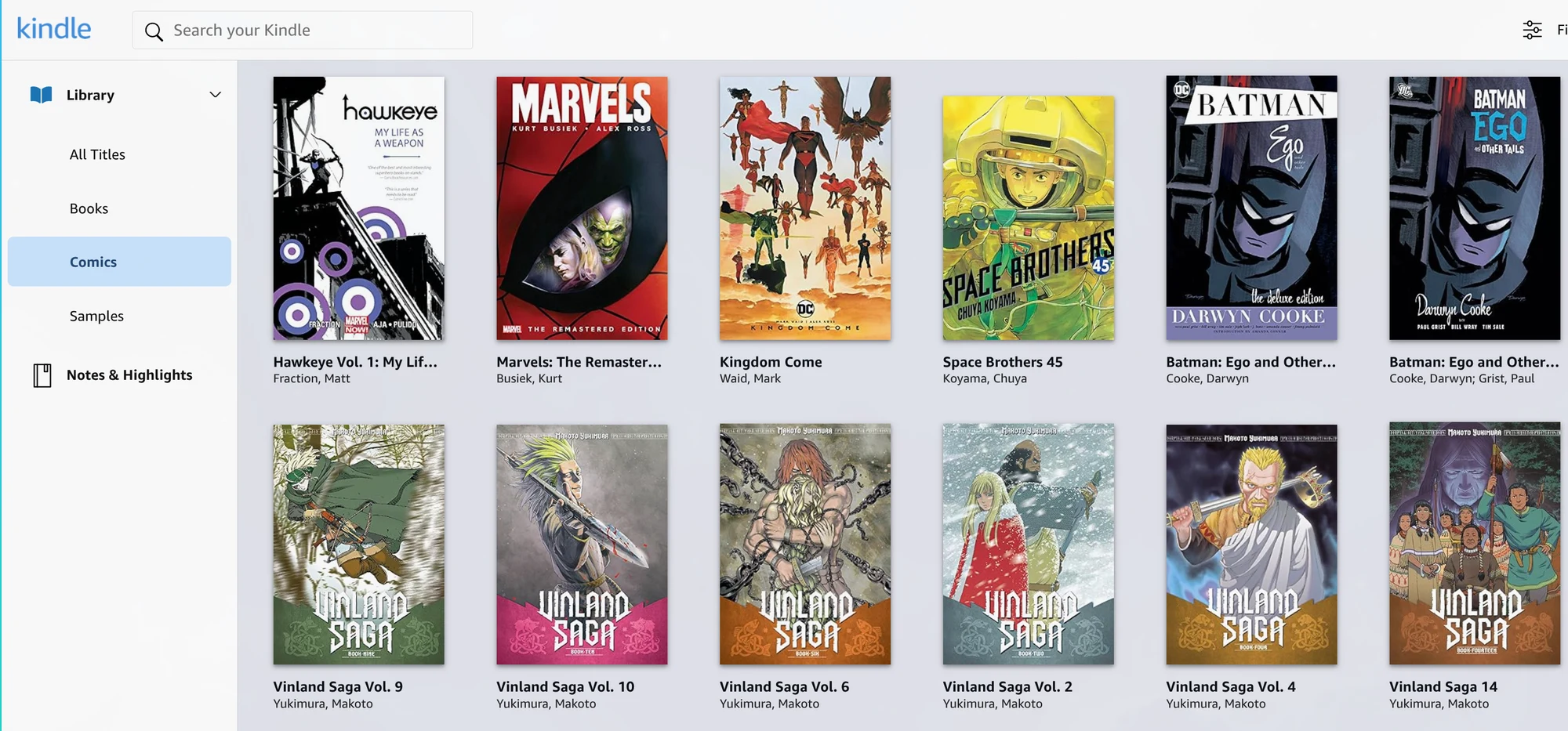
Sign in to your account and download every book you want to preserve. Opening the cover or seeing the title in your library isn’t enough. The content must be available offline inside the app.
Unfortunately, the most annoying part is still manual. Amazon found room for a one-click purchase button, but apparently not for a “download everything I’ve paid for” button.
I did this for 106 books. Yes, it was a pain in the ass.
Generating KFX-ZIP files and the K4I key
The DeDRM_tools.zip we extracted on Linux is already visible in Windows through the shared directory. Open PowerShell and switch to that directory:
cd \\host.lan\Data\Kindle-DeDRM\v10.0.28
.\MSIXKFXArchiverMobi1_18632.exe
The banner may still mention an older 1.0.15230 build. The versioned executable above looks for Store app 1.0.18632, and that’s the one that worked for me. The number in the file name must match your app version: if the Store already delivered a newer one, download the matching release from the project’s page (see the update in the plugins section).
This executable finds the current Microsoft Store app’s cache, gathers each book’s components, and produces two things:
archived_kfx/, containing one.kfx-zipfor every downloaded ebook;oldbooks.k4i, the keyfile DeDRM needs to open those files.
On my machine, the process found and archived 106 books. The SHA-256 of the executable I ran was:
0c78b45ccea2c36a5fbb01b9f66bdd9e5d5960a68a340ba2ee96e138f5cddf4aIt is a 32-bit binary. If it complains about a missing MSVCP140.dll, install the official Microsoft Visual C++ Redistributable x86. Do not hunt for a loose DLL on Google. That’s a great way to turn a book backup into a malware backup.
The oldbooks.k4i file is sensitive. It is derived from your account secret in that Kindle installation. Do not publish it, attach it to a GitHub issue, screenshot its contents, or put it in a public repository.
Configuring the key in DeDRM
Back on Linux, open Calibre and follow this path:
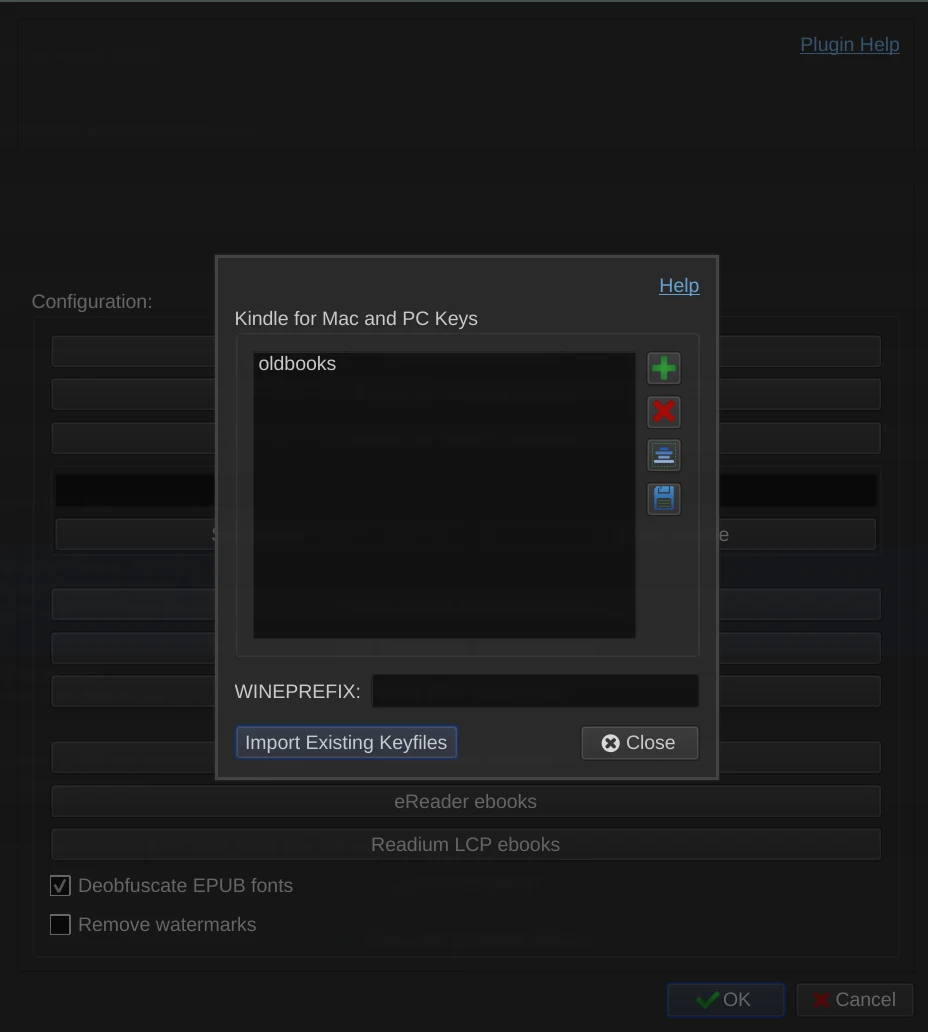
Preferences → Plugins → DeDRM → Customize plugin → Kindle for Mac/PC ebooks → Import Existing Keyfiles
Select:
~/Windows/Kindle-DeDRM/v10.0.28/oldbooks.k4iUse Import Existing Keyfiles. Do not use the generic Set Keyfile button on the main screen. It records a different kind of key candidate and does not register the K4I key in the right place.
Close the key list, click OK in the main configuration window, and restart Calibre. If you close it with Cancel, it quietly throws the change away.
Importing and converting to EPUB
Before dumping a hundred files into the library, test one.
Choose a .kfx-zip from:
~/Windows/Kindle-DeDRM/v10.0.28/archived_kfx/Use Add books in Calibre. Internally, the order is:
- KFX Input recognizes the package;
- DeDRM tries the K4I keys during import;
- KFX Input assembles the decrypted book as KFX;
- Calibre can now open and convert the result.
If the format still appears as KFX-ZIP, it failed. Clicking Convert ten times won’t help. Remove that entry from the library, fix the plugin or key, and import it again. DeDRM only acts on input.
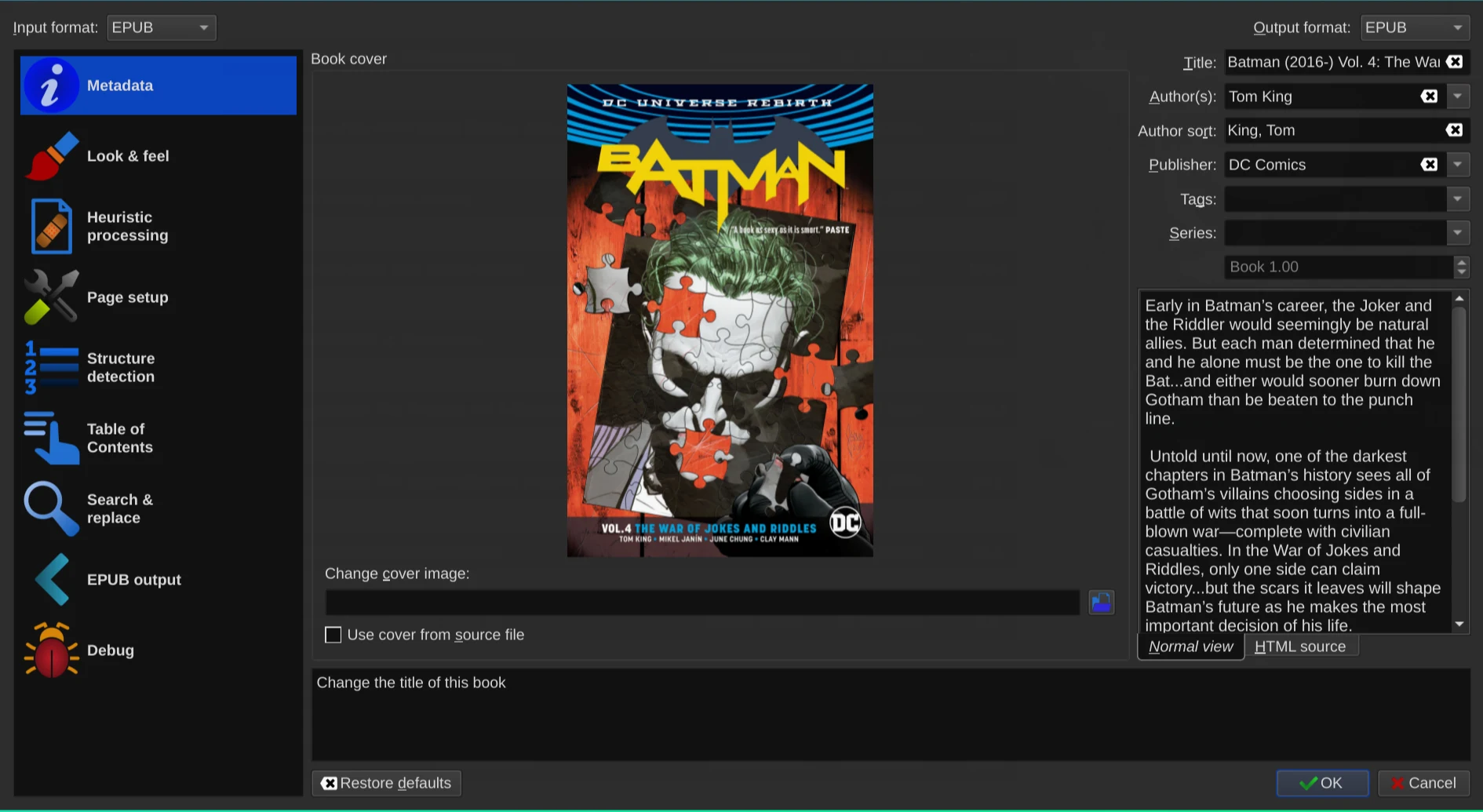
When the book appears as KFX, open it in the viewer and check a few pages. Then click Convert books, choose EPUB as the output, and test the resulting file on the reader you plan to use. Only then should you run the batch import.
In my case, the KFX opened, converted, and the EPUB worked outside Kindle. That told me the entire path was working: Microsoft Store, TPM, archiver, K4I, DeDRM 10.0.28, and KFX Input 2.33.0.
Back up what actually matters
After the conversion, I preserve three things:
- the final EPUBs, which I can read on any device;
- the original KFX-ZIP files, until I’ve verified that every EPUB is intact;
oldbooks.k4i, encrypted and stored separately from the library.
My plaintext keyfile has 0600 permissions. I also keep an encrypted copy using SOPS and age, with the private key in a separate backup. Do not put a raw oldbooks.k4i in Git just because the repository is private. Private repositories leak too.
The EPUBs follow the same strategy I use for other important files: a local copy, NAS, and off-site backup. I explained this paranoia in Protecting and Recovering Lost Data and showed the same philosophy applied to movies in My Personal Netflix.
Do not delete files from the Kindle or the VM the minute conversion finishes. Open the EPUBs and check the cover, table of contents, images, notes, and a few pages. A backup you’ve never tested is just wishful thinking.
Conclusion
Amazon has remotely deleted books, publishers update covers and content, old apps stop working, and formats change. The end of Download & Transfer via USB proved that a feature available for eighteen years can disappear with one line in a notice.
The classic example is still unbelievable: in 2009, Amazon deleted 1984 and Animal Farm by George Orwell from customers’ Kindles. Later, revisions to Roald Dahl, R.L. Stine, and Agatha Christie were pushed into digital copies people had already bought. The Vice article summarizes those cases. Dammit Jeff makes the same point often: even the original cover you chose can turn into an ugly poster for the streaming adaptation because the publisher and store decided to update your “purchase.”
It doesn’t matter whether the next change is censorship, a legitimate correction, another horrible Netflix adaptation cover, or a plain bug. I bought an edition. I want to preserve the edition I bought.
DRM does not stop piracy. A popular book lands on torrents the day it comes out. DRM only gets in the paying customer’s way, makes accessibility harder, locks up perfectly good hardware, and turns a purchase into an indefinite rental.
Calibre, DeDRM, KFX Input, and a disposable VM gave me my library back. I can now put those EPUBs on the Xteink, a Kobo, a tablet, my phone, or a reader that doesn’t even exist yet. I can switch operating systems and turn off the internet. The files stay with me.
If it isn’t on your machine, it isn’t yours.